
Overview
As an Independent Agent, creating a 'Home App' from your client list is an easy way to put the power of GloveBoxHQ right in your front pocket.
With minimal setup, teams can access the agency portal and its core workflows directly from their smartphone; using the Action Menu to streamline client interactions and drive adoption among policyholders and agency staff alike.
Why This Matters
One of GloveBox's strengths is the ability to meet your insureds precisely where they already are — on their phones. Whether through our standard app or a custom white-labeled version, clients can access ClientHub directly from their mobile device.
This gives clients the kind of customer experience they've come to expect in the digital age, and allows your agency to compete against captive carriers on equal footing when it comes to service.
With the introduction of the Action Menu to GloveBoxHQ, agency users themselves can now benefit from their own mobile-first experience, and creating a shortcut on your home screen is a simple way to do so.
Walkthrough
To access your agency portal like an app on mobile, all you need is your GloveBoxHQ login info (typically your agency email address), and your smartphone's mobile browser.
Step 1: In your mobile browser, login to https://hq.gloveboxapp.com
Important: Do not use the GloveBox or your agency's white-labeled app from the Google Play or Apple Store, that is for the client-facing portal.
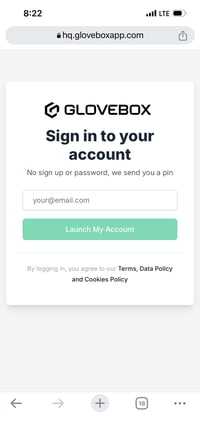
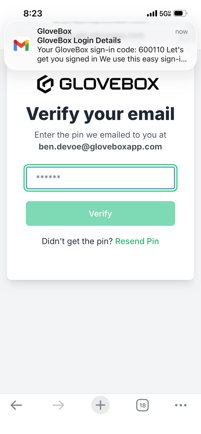
Step 2: Verify your login credentials with the one-time pin code
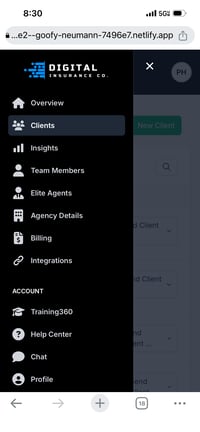
Step 3: From the main page, tap the Menu icon and select Clients
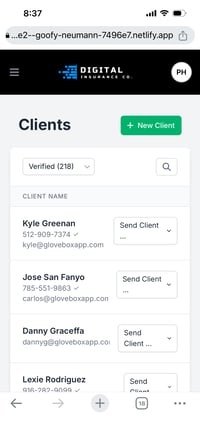
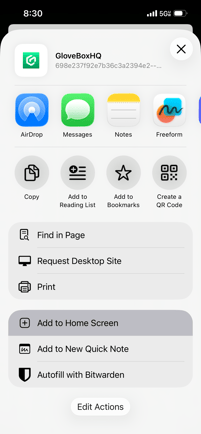
Step 4: From your clients page, tap the Share button in the address bar (top right)
Android: What you're looking for on this page typically lives under the 'More Options' (ellipsis / three-dot) menu.
Step 5: On the share menu, tap Add to Home Screen (or Create Shortcut on Android)
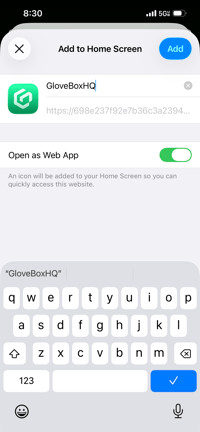
Step 6: Tap Add, ensuring Open as Web App is selected if on iOS
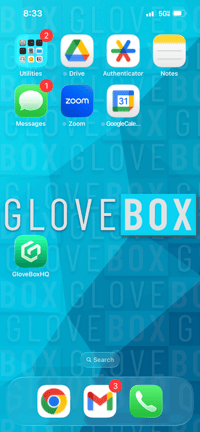
You're all set!
Now you have one-tap access to your clients through the GloveBoxHQ agency portal—and all of your core workflows—anywhere you need them.
Home App Benefits
What makes this simple tip so effective—and the reason we configured the web app from your Clients page—is because it allows agencies to literally 'tap' into the power of the Action Menu in GloveBoxHQ.
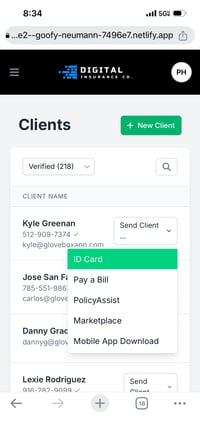
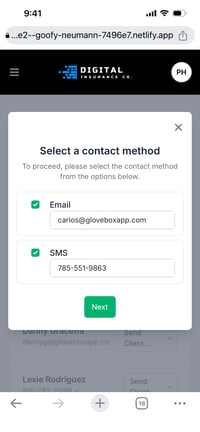
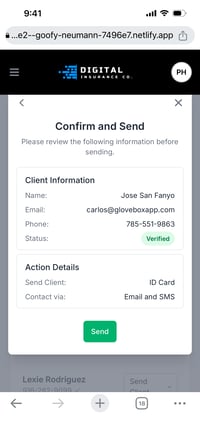
Using the Action Menu from your new home app, you can quickly run sales and service workflows with clients within GloveBox’s mobile platform.