
Summary
This article provides an overview and brief walkthrough for how to use the Action Menu within the agency portal (GloveBoxHQ). Here we will cover the Action Menu's basic functions, where it can be accessed, its impact on the client experience, and how it benefits your agency.
Why it Matters
GloveBox replaces inefficient client engagement strategies (phone, email) with digital workflows and an optimized, mobile-first experience.
However, insureds might fall back into old habits after introducing GloveBox, pushing agencies to once again deal with clunky, manual engagement methods.
The Action Menu enforces efficiency by giving agencies complete, operationalized control over their clients' GloveBox adoption.
How it Works
The Action Menu allows agency users to deploy 1:1 links that drive clients directly into the relevant workflow within their client portal.
For example, if a policyholder requests an Auto ID card, you can text the insured a link via the Action Menu that will open their specific ID card(s) within the mobile app.
What workflows does it facilitate?
Currently, the Action Menu supports the following:
- ID Cards
- Bill Pay
- PolicyAssist (Service flows: filing claims, document requests, roadside, etc.)
- Embedded Marketplace (Sales Flows: quotes, adding coverage, referrals, etc.)
- Mobile App Download
Where is the Action Menu available?
Within the agency portal, the Action Menu can be accessed via the dropdown(s) from either the Clients menu or within any individual Client Profile.
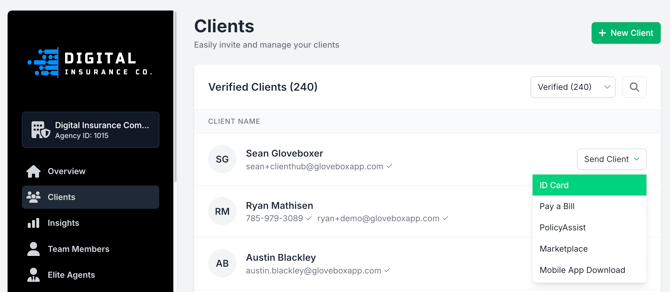
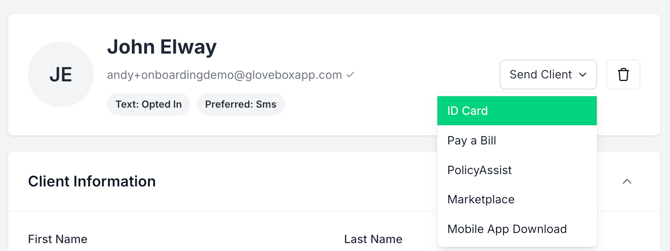
Best Practice: The Action Menu can also be accessed from a mobile device by saving the Clients page as a 'Home App' (shortcut)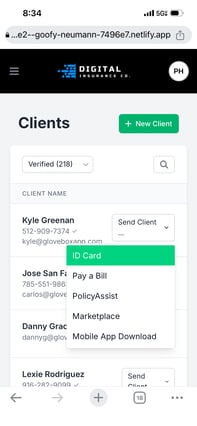
Click Here for full guide
Walkthrough: Bill Pay Example
A brief end-to-end, step-by-step guide for using the Action Menu in the context of payment workflows.
The steps outlined here closely mirror the process and behavior for all other workflows supported by the Action Menu.
Agency Perspective:
Step 1: In GloveBoxHQ, from the Clients or a specific Client Profile page, select Pay a Bill from the Action Menu (Send Client) dropdown
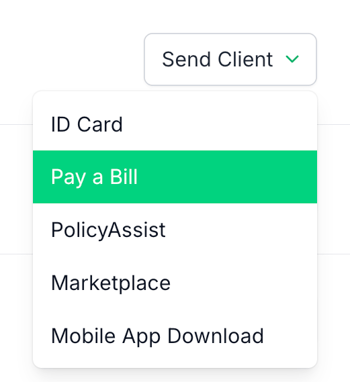
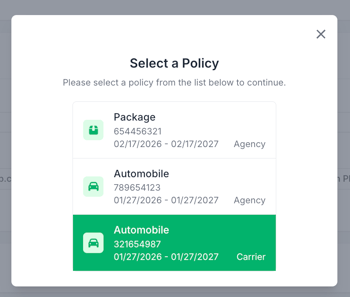
Step 2: Select the desired policy for the payment workflow
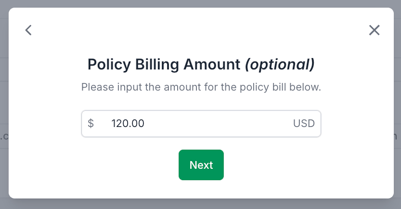
Step 3 (Optional): Set the appropriate payment amount
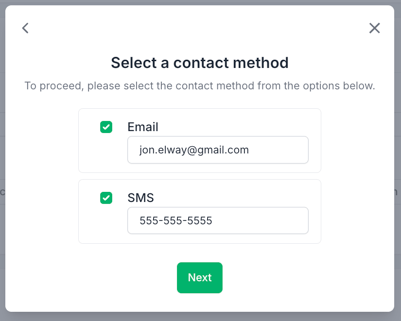
Step 4: Select delivery method(s)
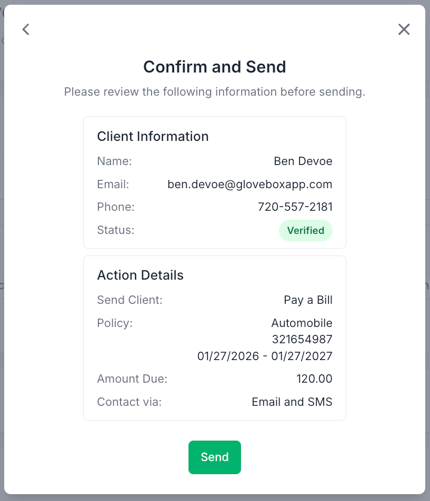
Step 5: Confirm and send the payment request
You're done!
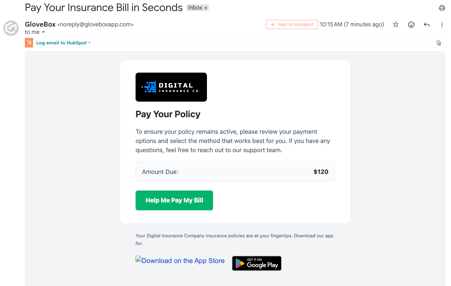
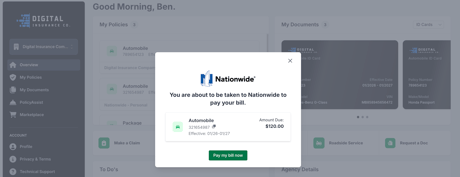
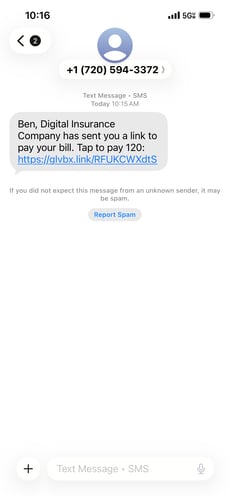
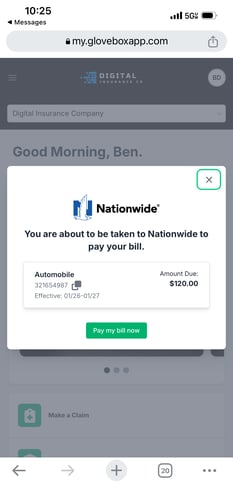
The policyholder will receive a direct link to the payment workflow for the specific policy in either the web or mobile version of the client portal (ClientHub) depending on the contact method(s) chosen.
Policyholder Perspective:
Email ⇒
Mobile ⇒
Common Questions
What happens if my client has no ID cards?
If attempting to send a link to an ID card that does not exist with the Action Menu, you will be prompted to upload one before it can be sent.
What happens if I send client(s) a workflow that's not set up?
If you attempt to direct a client to the Marketplace for a quote or into PolicyAssist to file a claim for example, and that workflow has not been set up, you will be prompted to configure it in the Action Menu before it can be sent.
What happens if I send the 'Mobile App Download' workflow and the client opens it on the web?
In that case the client will receive a link to an agency-branded web page with a QR code they can scan with their mobile device to download the GloveBox app.
How does 'Bill Pay' work for direct vs. agency-managed billing?
Links created from the Action Menu when selecting 'Bill Pay' are handled on a policy-by-policy basis; as in, depending on which specific policy is selected the insured will either enter your agency's or the carrier's specific payment workflow.